How to Set Up Your WiFi CCTV Camera in 10 Minutes
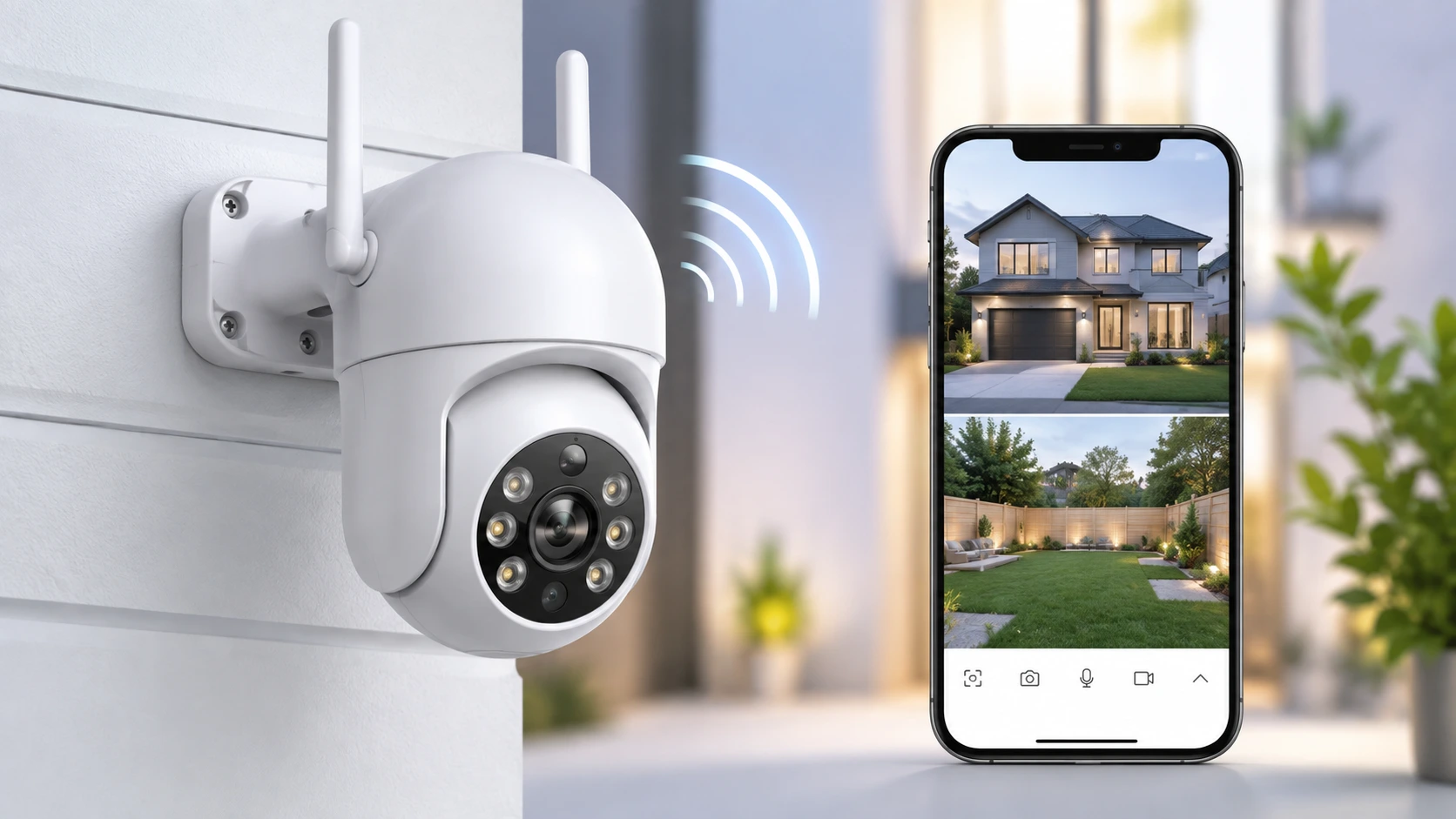
Setting up a WiFi security camera at home is far easier than most people think. You don't need an electrician, drilling expertise or any technical background — a modern UNICRON WiFi camera connects to your phone in minutes and starts recording right away.
In this simple step-by-step guide, we'll walk you through the entire process — from unboxing to live monitoring on your phone — so you can secure your home in about 10 minutes.
⏱️ What You'll Need
A UNICRON WiFi camera, a 2.4GHz WiFi connection, your smartphone, and (optionally) a microSD card for local recording. That's it — no wiring, no professional installer required.
Before You Start — A Quick Checklist
- Make sure your WiFi is a 2.4GHz network (most home cameras don't support 5GHz).
- Keep your WiFi password ready — you'll need to enter it.
- Charge your phone and keep it near the camera during setup.
- Insert a microSD card into the camera if you want local recording.
Step-by-Step Setup Guide
Step 1 — Power On the Camera
Plug the camera into a power socket using the included adapter. Wait about 30 seconds — you'll hear a beep or see a blinking indicator light, which means the camera is ready to pair.
Step 2 — Download the App
Download the camera's companion app from the Google Play Store or Apple App Store (the app name is usually printed on the box or in the manual). Install it and create a free account.
Step 3 — Add the Camera
Open the app and tap the "+" or "Add Device" button. Choose your camera model, and the app will start looking for nearby cameras that are ready to pair.
Step 4 — Connect to WiFi
Select your 2.4GHz WiFi network and enter the password. The app may show a QR code on your phone — simply hold it in front of the camera lens so the camera can scan it and connect.
Step 5 — Start Monitoring
Once connected, you'll see the live camera feed on your phone. Give the camera a name (like "Front Door" or "Living Room") and you're done. You can now watch live video, get motion alerts, and review recordings from anywhere.
Getting the Best Out of Your Camera
Once your camera is up and running, a few small settings make a big difference:
- Enable motion detection alerts so you get a phone notification whenever movement is detected.
- Turn on night vision (usually automatic) for clear footage in the dark.
- Set up a recording schedule or continuous recording if you have a microSD card installed.
- Position the camera to cover entry points — doors, gates and main hallways.
Troubleshooting Common Issues
| Problem | Solution |
|---|---|
| Camera won't connect to WiFi | Make sure you're using a 2.4GHz network, not 5GHz. Move the camera closer to the router during setup. |
| App can't find the camera | Reset the camera (hold the reset button for 5–10 seconds) and try pairing again. |
| Blurry or dark video | Clean the lens gently and make sure night vision is enabled. |
| No recordings saved | Check that a compatible microSD card is inserted and formatted in the app. |
✅ You're All Set!
That's it — in about 10 minutes you've installed a fully working WiFi security camera. No wiring, no technician, no stress. You can now keep an eye on your home from anywhere, right on your phone.
🛒 Shop UNICRON WiFi Security Cameras
Not sure which camera to pick? Read our guide on indoor vs outdoor security cameras or check out the best home security tips for Indian households.
Frequently Asked Questions
Do I need an electrician to install a WiFi CCTV camera?
No. A WiFi camera simply plugs into a power socket and connects to your phone through an app — no wiring or professional installation is required.
Does the camera work on 5GHz WiFi?
Most home WiFi cameras only support 2.4GHz networks. Make sure you connect the camera to your 2.4GHz WiFi during setup, not 5GHz.
Can I view my camera when I'm away from home?
Yes. As long as the camera has an internet connection, you can view the live feed and recordings from anywhere using the app on your phone.
Do I need a microSD card?
A microSD card is optional but recommended. It lets the camera store recordings locally so you can review footage later. Some cameras also support cloud storage.
How long does the setup really take?
For most users, the entire process — from powering on to live monitoring — takes about 10 minutes.