How to Set Up Your WiFi CCTV Camera in 10 Minutes
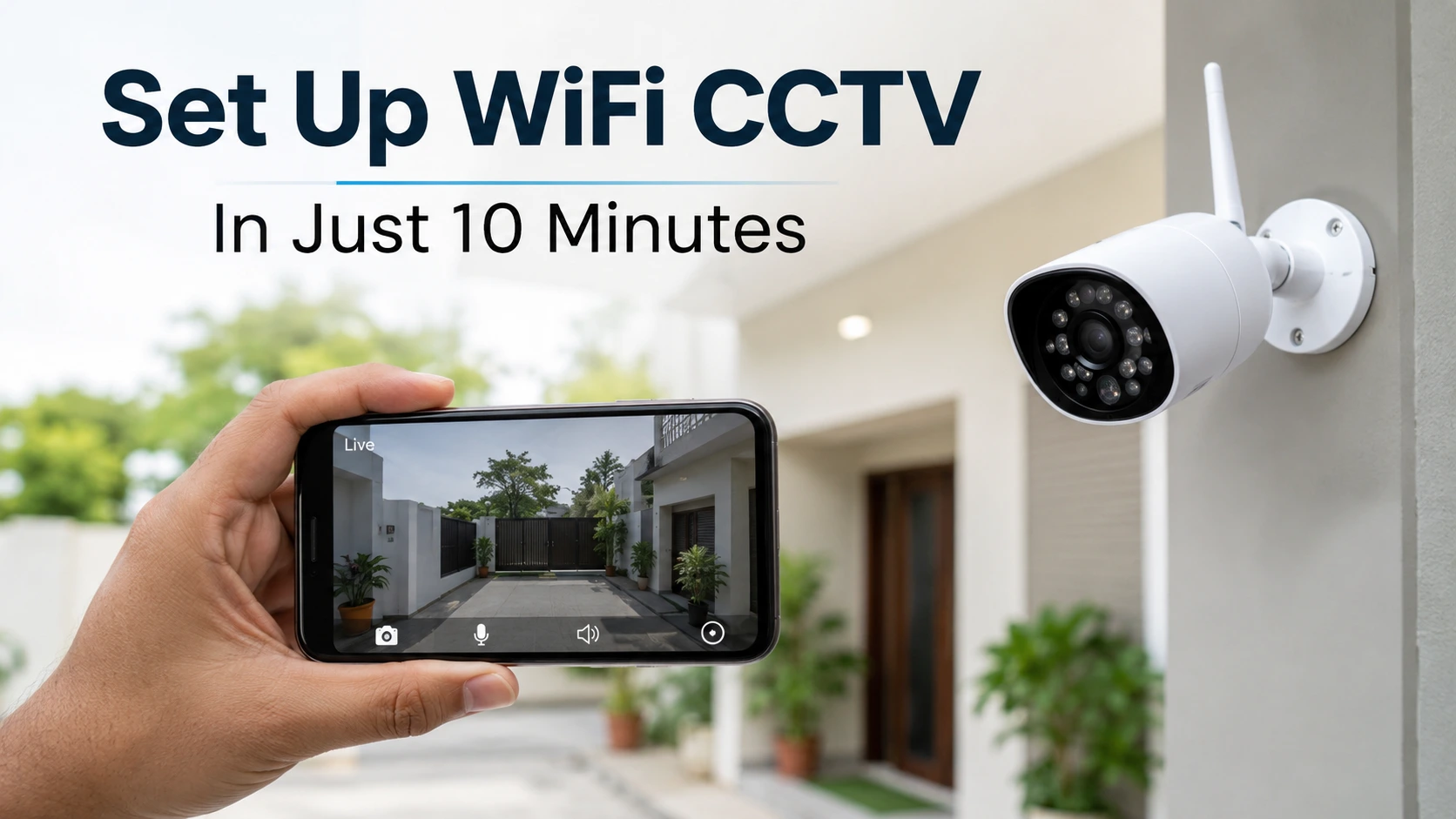
Think setting up a CCTV camera means calling a technician, running long wires and spending a whole afternoon? Not anymore. A modern WiFi CCTV camera connects to your phone in minutes — no wiring, no drilling drama, no waiting around. If you can set up a new phone, you can do this.
Here's a simple, no-jargon guide to get your WiFi security camera up and running in about 10 minutes, so you can start watching your home or shop live from anywhere.
What You'll Need
Before you start, keep these ready — it makes the whole thing smooth:
- Your WiFi CCTV camera and its power adapter
- A smartphone (Android or iPhone)
- Your home WiFi name and password
- A microSD card (optional, for local recording)
- A power socket near where you'll place the camera
Step 1. Unbox and Power On the Camera
Take the camera out, plug it into the power adapter, and switch it on. Wait a few seconds — you'll usually hear a beep or a voice prompt, and a small light will start blinking. That blinking light means the camera is ready to be paired. If you're using a microSD card, insert it now.
Step 2. Download the Camera App
Every WiFi camera pairs with a free companion app. Check the box or manual for the app name, then download it from the Google Play Store or Apple App Store. This app is your control centre — live view, recordings, alerts, everything runs through it.
Step 3. Create an Account and Add the Camera
Open the app and sign up with your mobile number or email (takes a minute). Then tap "Add Device" or the "+" icon. The app will either ask you to scan a QR code on the camera, or listen for the camera's beep to detect it. Follow the on-screen prompt — it's guided all the way.
Step 4. Connect the Camera to Your WiFi
Now the important bit: the app will ask for your WiFi name and password. Enter them carefully (passwords are case-sensitive). The camera will connect to your network — you'll hear a confirmation like "connection successful." That's it: your camera is now online and linked to your phone.
Step 5. Mount and Position the Camera
Place the camera where it matters most — the main door, entrance, shop counter, or the room you want to watch. A few pointers:
- Mount it high enough that it can't be easily reached or blocked.
- Point it to cover the widest, most important area.
- Avoid pointing directly at bright light or the sun (it washes out the picture).
- Make sure it's still within good WiFi range.
Not sure whether you need an indoor or outdoor model for a spot? Our guide on indoor vs outdoor security cameras makes it simple.
Step 6. Set Up Alerts, Night Vision and Storage
Finally, spend a minute in the app settings to switch on the features that make the camera genuinely useful:
- Motion detection alerts — get a phone notification the moment there's movement.
- Night vision — usually auto, but confirm it's enabled.
- Storage — choose microSD (local) or cloud backup for recordings.
- Two-way audio — test the mic and speaker so you can hear and talk.
And you're done — your home or shop is now on your phone, 24x7. 🎉
Troubleshooting: Quick Fixes
If something doesn't work the first time, don't worry — it's almost always one of these:
- Camera won't connect to WiFi? Make sure you're on the 2.4GHz band and the password is correct.
- Weak or dropping signal? The camera may be too far from the router — move it closer or add a WiFi extender.
- Not pairing? Reset the camera (hold the reset button a few seconds) and start again.
- No alerts? Check that notifications are enabled both in the app and in your phone settings.
Get the Most Out of Your Camera
Setting up the camera is step one of a safer home. To build proper protection around it, take a look at our home security tips for Indian households — small habits that make a big difference.
Looking for an easy-to-install WiFi CCTV camera with night vision, motion alerts and phone monitoring? At Tanish Electronics you'll find affordable options backed by COD, free shipping and a warranty.
🛒 Shop WiFi CCTV Cameras at Tanish Electronics →
Frequently Asked Questions
Do I need an electrician to install a WiFi CCTV camera?
No. WiFi cameras are designed for easy DIY setup — you just plug in power, connect to WiFi through the app, and mount the camera. No wiring or technician needed.
Does a WiFi CCTV camera work without the internet?
It needs WiFi/internet to stream live video and send alerts to your phone. Many cameras also record locally to a microSD card, which keeps working even if the internet drops.
Why won't my camera connect to WiFi?
The most common reason is trying to connect to a 5GHz network — most cameras need 2.4GHz. Also double-check that the WiFi password is entered correctly.
Can I watch my camera when I'm away from home?
Yes. Once set up, you can view the live feed from anywhere on your phone through the app, as long as the camera has an internet connection.
How far can the camera be from the router?
It depends on your router, but keep the camera within strong WiFi range. If the signal is weak, move it closer or use a WiFi extender for a stable connection.